Intro
Big thanks to HTB Academy
History
Microsoft first introduced the Windows OS on 1985.
Windows 95 was the first full integration of Windows and DOS and offered built-in Internet support for the first time.
Windows Server was first released in 1993 with the release of Windows NT 3.1 Advanced Server.
With the release of Windows 2000, Microsoft debuted Active Directory + Microsoft Management Console (MMC).
Versions
- Windows NT 4
- Windows 2000
- Windows XP
- Windows Server 2003, 2003 R2
- Windows Vista, Server 2008
- Windows 7, Server 2008 R2
- Windows 8, Server 2012
- Windows 8.1, Server 2012 R2
- Windows 10, Server 2016, Server 2019
Windows NT is a family of Windows operating systems from 1993 that includes Windows 2000, Vista, 7, 8, 8.1, Windows 10, and now Windows 11
NT = New Technology
Remote Access
SSH
VPN
FTP
VNC
WinRM
RDP
- By default, remote access is not allowed on Windows operating systems.
- Remote Desktop Files (.rdp)
-
RDP Clients :
PS> mstsc.exe$ Xfreerdp /v:$IP /u:$USERNAME /p:$PASSWD$ rdesktop -u $USERNAME $IP$ remmina
Windows Directory Structure
the root directory (boot partition) is <drive_letter>:\ (commonly C drive)
| Directory | Function |
|---|---|
| Perflogs | Windows performance logs (empty by default) |
| Program Files | All 16-bit and 32-bit programs on 32-bit systems. Only 64-bit programs on 64-bit systems |
| Program Files (x86) | 32-bit and 16-bit programs on 64-bit systems. |
| ProgramData | A hidden folder contains essential data for certain installed programs to run. This data is accessible by the program no matter what user is running it. |
| Users | Contains user profiles for each user that logs onto the system And contains the two folders Public and Default. |
| Default | This is the default user profile template for all created users. |
| Public | This folder is intended for computer users to share files and is accessible to all users by default. This folder is shared over the network by default but requires a valid network account to access. |
| AppData | Per user application data and settings are stored in a hidden user subfolder (i.e., user.name\AppData). Each of these folders contains three subfolders. - The Roaming folder contains machine-independent data that should follow the user's profile, such as custom dictionaries. - The Local folder is specific to the computer itself and is never synchronized across the network. - The LocalLow is similar to the Local folder, but it has a lower data integrity level. Therefore it can be used, for example, by a web browser set to protected or safe mode. |
| Windows | Windows operating system required files. |
| System, System32, SysWOW64 | They Contains all DLLs required for the core features of Windows and the Windows API. The operating system searches these folders any time a program asks to load a DLL without specifying an absolute path. |
| WinSxS | The Windows Component Store contains a copy of all Windows components, updates, and service packs. |
Windows File System
There is 5 types :
FAT12&FAT16(both deprecated),FAT32,NTFS, andexFAT.
FAT = File Allocation Table
- Used in : SD Cards / USBs / and to format hard drives.
- 32 == identifying the data cluster on the storage account.
FAT32 Cons
- Can only be used with files that are less than 4GB.
- No built-in data protection or file compression features.
- Must use third-party tools for file encryption
NTFS = New Technology File System
- The default win file sys type currently
Permissions
Basic
| Permission Type | Description |
|---|---|
| Full Control | Allows reading, writing, changing, deleting of files/folders. |
| Modify | Allows reading, writing, and deleting of files/folders. |
| List Folder Contents | Allows for viewing and listing folders and subfolders as well as executing files. Folders only inherit this permission. |
| Read and Execute | Allows for viewing and listing files and subfolders as well as executing files. Files and folders inherit this permission. |
| Write | Allows for adding files to folders and subfolders and writing to a file. |
| Read | Allows for viewing and listing of folders and subfolders and viewing a file's contents. |
Advanced
| Permission | Description |
|---|---|
| Full control | Users are permitted or denied permissions to add, edit, move, delete files & folders as well as change NTFS permissions that apply to all permitted folders |
| Traverse folder / execute file | Users are permitted or denied permissions to access a subfolder within a directory structure even if the user is denied access to contents at the parent folder level. Users may also be permitted or denied permissions to execute programs |
| List folder/read data | Users are permitted or denied permissions to view files and folders contained in the parent folder. Users can also be permitted to open and view files |
| Read attributes | Users are permitted or denied permissions to view basic attributes of a file or folder. Examples of basic attributes: system, archive, read-only, and hidden |
| Read extended attributes | Users are permitted or denied permissions to view extended attributes of a file or folder. Attributes differ depending on the program |
| Create files/write data | Users are permitted or denied permissions to create files within a folder and make changes to a file |
| Create folders/append data | Users are permitted or denied permissions to create subfolders within a folder. Data can be added to files but pre-existing content cannot be overwritten |
| Write attributes | Users are permitted or denied to change file attributes. This permission does not grant access to creating files or folders |
| Write extended attributes | Users are permitted or denied permissions to change extended attributes on a file or folder. Attributes differ depending on the program |
| Delete subfolders and files | Users are permitted or denied permissions to delete subfolders and files. Parent folders will not be deleted |
| Delete | Users are permitted or denied permissions to delete parent folders, subfolders and files. |
| Read permissions | Users are permitted or denied permissions to read permissions of a folder |
| Change permissions | Users are permitted or denied permissions to change permissions of a file or folder |
| Take ownership | Users are permitted or denied permission to take ownership of a file or folder. The owner of a file has full permissions to change any permissions |
Managing Permissions
PS> Exploere.exe
# > Security > Advanced > ...
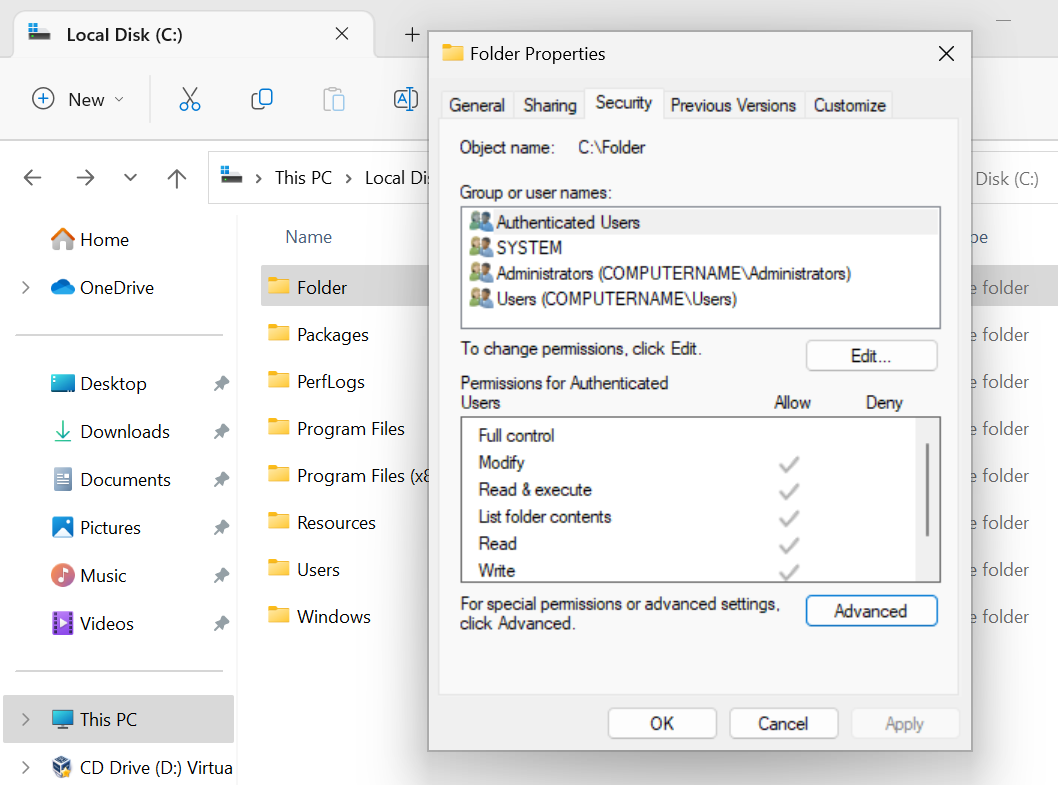
Files and folders inherit the NTFS permissions of their parent folder for ease of administration.
By default, all NTFS permissions are inherited from the parent directory. In the Windows world, the C:\ drive is the parent directory to rule all directories, unless a system administrator were to disable inheritance inside a newly created folder’s advanced Security settings.
File/Folder Right Click > Properties > Security > Advanced > Disable inheiritance
Anytime we see a gray checkmark next to a permission, it was inherited from a parent directory.
Integrity Control Access Control List (icacls)
PS> icacls.exe
PS > icacls.exe .\Folder\
# .\Folder\ BUILTIN\Administrators:(I)(OI)(CI)(F)
#           NT AUTHORITY\SYSTEM:(I)(OI)(CI)(F)
#           BUILTIN\Users:(I)(OI)(CI)(RX)
#           NT AUTHORITY\Authenticated Users:(I)(M)
#           NT AUTHORITY\Authenticated Users:(I)(OI)(CI)(IO)(M)

# Successfully processed 1 files; Failed processing 0 files
The possible inheritance settings are:
(CI): container inherit(OI): object inherit(IO): inherit only(NP): do not propagate inherit(I):permission inherited from parent container
Basic access permissions are as follows:
F: full accessD: delete accessN: no accessM: modify accessRX: read and execute accessR: read-only accessW: write-only access
# Grant permission of a File/Folder to a User
PS> icacls.exe C:\Folder\ /grant USER:F
# The User Won't have a permission to the sub-directories since the (oi) and (ci) not included in the command

PS> icacls.exe C:\Folder\
# C:\Folder\ COMPUTERNAME\osama:(F)   <==================== give access to the user osama
#         BUILTIN\Administrators:(I)(OI)(CI)(F)
#         NT AUTHORITY\SYSTEM:(I)(OI)(CI)(F)
#         BUILTIN\Users:(I)(OI)(CI)(RX)
#         NT AUTHORITY\Authenticated Users:(I)(M)
#         NT AUTHORITY\Authenticated Users:(I)(OI)(CI)(IO)(M)
# Remove permission of a File/Folder to a User
PS> icacls.exe C:\Folder\ /remove USER
Audit
Server Message Block (SMB)
The SMB protocol: is used in Windows to connect shared resources like files and printers.
Many variants of malware written for Windows can spread over the network via network shares with lenient permissions applied.
NTFS vs. Share Permissions
NTFS permissions and share permissions are not the same —-> but often apply to the same shared resource. Which means both the SMB and NTFS permissions lists apply to every resource that gets shared in Windows. NOTE : : Security settings override Share permissions.
NTFS permissions apply to the system where the folder and files are hosted The share permissions apply when the folder is being accessed through SMB, typically from a different system over the network. This means someone logged in locally to the machine or via RDP can access the shared folder and files by simply navigating to the location on the file system and only need to consider NTFS permissions
Share Permissions
| Permission | Description |
|---|---|
| Full Control | Users are permitted to perform all actions given by Change and Read permissions as well as change permissions for NTFS files and subfolders |
| Change | Users are permitted to read, edit, delete and add files and subfolders |
| Read | Users are allowed to view file & subfolder contents |
Keep in mind that in most large enterprise environments, shares are created on a Storage Area Network (SAN), Network Attached Storage device (NAS), or a separate partition on drives accessed via a server operating system like Windows Server.
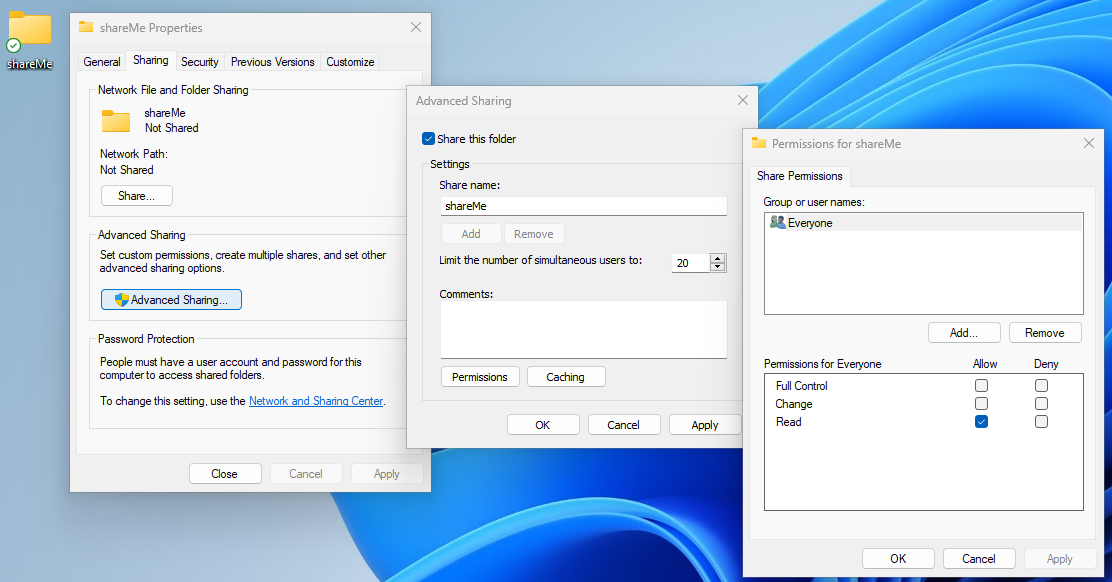
Similar to NTFS permissions, there is an access control list (ACL) for shared resources. We can consider this the SMB permissions list The ACL contains access control entries (ACEs). —–> are made up of users & groups (also called security principals)
Notice the default access control entry and default permissions settings.
Creating Shared Folder
On Windows Machine
-
Search > Manage advanced sharing settings > Enable File and printer sharing
-
Search > Windows Defender Firewall > Advanced settings > Inbound rules
- Enable "File and Printer Sharing (NB-Session-In)"
- Enable "File and Printer Sharing (SMB-In)"
Firewall rules on desktop systems can be centrally managed when joined to a Windows Domain environment through the use of Group Policy.
-
Create a Folder > Right Click > Properties > Sharing > Advanced Sharing > Enable "Share this folder" > Permissions > Select the needed permissions & Assing the related Groups.
-
To list the exsisting shared folders on your system
-
File Explorer > Search > \\IP
-
or from the Search > Computer Management > Under System Tools _ Shares _ …
-
or using powershell
   PS> net share
   # Share name   Resource                        Remark
   # ------------------------------------------------------------------------
   # IPC$                                         Remote IPC
   # C$           C:\                             Default share
   # ADMIN$       C:\Windows                      Remote Admin
   # Folder       C:\Folder
-
-
to access the shared folder
-
make sure the folder assigned the right ACEs
-
File Explorer > Search > \\IP\ShareName
-
using powershell
   PS> net use \\IP[\ShareName] /USER:\USERNAME PASSWORD
   PS> cd "\\IP\ShareName\"
-
On Linux Machine
- create temp smb-server
$ impacket-smbserver ShareName FolderToShare -smb2support -
To list the exsisting shared folders on your system
- using smbclient
$ smbclient -L \\\\IP -U USERNAME --password=PASSWORD
- using smbclient
-
to access the shared folder
-
make sure the folder assigned the right ACEs
-
using smbclient
   $ smbclient \\\\IP\\ShaerName -U USERNAME --password=PASSWORD

   # Creating mount point to the shared folder
   $ sudo apt-get install cifs-utils
   $ sudo mount -t cifs -o username=USERNAME,password=PASSWORD //IP/ShareName /home/USERNAME/..../MonutDest
-
Windows Services
Windows services are managed via the Service Control Manager (SCM) system, accessible via the services.msc Microsoft Management Console (MMC) add-in.
Microsoft Saved Console Files (msc)
It is also possible to query and manage services via the command line using sc.exe using PowerShell cmdlets such as Get-Service.
Service statuses can appear as Running, Stopped, or Paused, and they can be set to start manually, automatically, or on a delay at system boot.
Windows has three categories of services:
- Local Services
- Network Services
- System Services.
Misconfigurations around service permissions are a common privilege escalation vector on Windows systems.
services allow for the management of long-running processes and are a critical part of Windows operating systems. Sysadmins often overlook them as potential threat vectors that can be used to load malicious DLLs, execute applications without access to an admin account, escalate privileges and even maintain persistence.
In Windows, we have some critical system services that cannot be stopped and restarted without a system restart. If we update any file or resource in use by one of these services, we must restart the system.
| Service | Description |
|---|---|
| smss.exe | Session Manager SubSystem. Responsible for handling sessions on the system. |
| csrss.exe | Client Server Runtime Process. The user-mode portion of the Windows subsystem. |
| wininit.exe | Starts the Wininit file .ini file that lists all of the changes to be made to Windows when the computer is restarted after installing a program. |
| logonui.exe | Used for facilitating user login into a PC |
| lsass.exe | The Local Security Authentication Server verifies the validity of user logons to a PC or server. It generates the process responsible for authenticating users for the Winlogon service. |
| services.exe | Manages the operation of starting and stopping services. |
| winlogon.exe | Responsible for handling the secure attention sequence, loading a user profile on logon, and locking the computer when a screensaver is running. |
| System | A background system process that runs the Windows kernel. |
| svchost.exe with RPCSS | Manages system services that run from dynamic-link libraries (files with the extension .dll) such as "Automatic Updates," "Windows Firewall," and "Plug and Play." Uses the Remote Procedure Call (RPC) Service (RPCSS). |
| svchost.exe with Dcom/PnP | Manages system services that run from dynamic-link libraries (files with the extension .dll) such as "Automatic Updates," "Windows Firewall," and "Plug and Play." Uses the Distributed Component Object Model (DCOM) and Plug and Play (PnP) services. |
Service Permissions
If the NTFS permissions of the destination directory are configured with weak permissions, an attacker could replace the original executable with one created for malicious purposes.
Some built-in service accounts in Windows:
- LocalService
- NetworkService
- LocalSystem
for example abusing the restart on failur feature
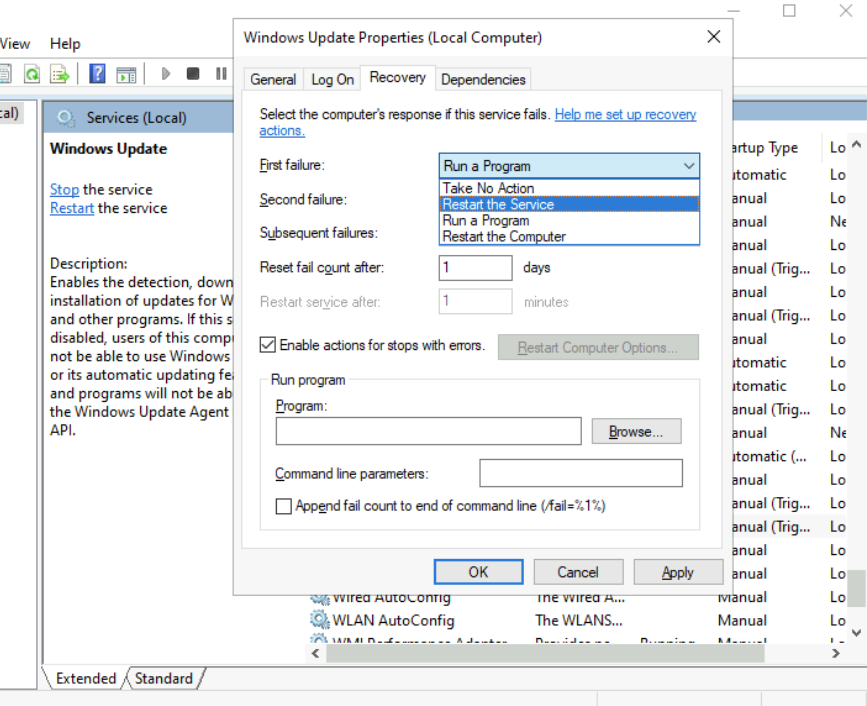
PS> sc config SERVICE_NAME binPath=C:\Winbows\Perfectlylegitprogram.exe

# [SC] QueryServiceConfig SUCCESS

# SERVICE_NAME: wuauserv
#         TYPE               : 20  WIN32_SHARE_PROCESS
#         START_TYPE         : 3   DEMAND_START
#         ERROR_CONTROL      : 1   NORMAL
#         BINARY_PATH_NAME   : C:\Winbows\Perfectlylegitprogram.exe
#         LOAD_ORDER_GROUP   :
#         TAG                : 0
#         DISPLAY_NAME       : Windows Update
#         DEPENDENCIES       : rpcss
#         SERVICE_START_NAME : LocalSystem
A helpful way to examine service permissions using sc is through the sdshow command.
PS> sc sdshow SERVICE_NAME
Windows Processes
Processes run in the background on Windows systems. They either run automatically as part of the Windows operating system or are started by other installed applications.
Processes associated with installed applications can often be terminated without causing a severe impact on the operating system. Certain processes are critical and, if terminated, will stop certain components of the operating system from running properly.
Some examples include the Windows Logon Application, System, System Idle Process, Windows Start-Up Application, Client Server Runtime, Windows Session Manager, Service Host, and Local Security Authority Subsystem Service (LSASS) process.
Local Security Authority Subsystem Service (LSASS.exe)
lsass.exe is the process that is responsible for enforcing the security policy on Windows systems.
When a user attempts to log on to the system, this process verifies their log on attempt and creates access tokens based on the user's permission levels.
LSASS is also responsible for user account password changes. All events associated with this process (logon/logoff attempts, etc.) are logged within the Windows Security Log.
LSASS is an extremely high-value target as several tools exist to extract both cleartext and hashed credentials stored in memory by this process.
Sysinternals Tools
https://learn.microsoft.com/en-us/sysinternals/
Sysinternals Live is a service that enables you to execute Sysinternals tools directly from the Web without hunting for and manually downloading them, (you can download them though!!)
PS> \\live.sysinternals.com\tools\TOOLNAME
The suite includes tools such as Process Explorer, an enhanced version of Task Manager, and Process Monitor, TCPView, PSExec.
Process Explorer is a part of the Sysinternals tool suite. This tool can show which handles and DLL processes are loaded when a program runs.